EZTV 16.0: Google Drive Folder Sync
For schools, churches, and businesses that live in Google Drive: EZTV 16.0 can sync a Drive folder to your TVs automatically. Drop images, videos, PDFs, or any documents in a folder and signage updates in under five minutes. No republishing. No USB sticks.
Key Takeaways
- Automatic sync from Google Drive to TVs about every 5 minutes
- Works with shared Drives and multiple editors
- Sync runs only when active: the Drive Folder slide must be in a playlist that is assigned to at least one online TV
- Least-privilege access with a dedicated read-only service account
- Available on Pro plans
*Typical performance on a healthy network. Actual times vary by file size, local network conditions, and Google API status.
Why This Matters
Education (K-12 and Universities)
- Morning announcements, bell schedules, and lunch menus update without manual exports.
- Athletics and counseling teams can drop files in Drive and see TVs refresh soon after.
- Staff keep using familiar Google tools. No new workflows to learn.
Churches and Faith Communities
- Last-minute foyer updates and classroom notices are a simple file drop away.
- Volunteers collaborate in shared Drives. EZTV handles the signage side.
SMBs and Nonprofits
- Update promos, menus, and event boards by managing files in a Google Drive folder.
- Multi-site operations stay in sync without emailing files around.
What’s New
Google Drive Folder Sync
EZTV watches a specific folder in your Google Drive. When you add, edit, or remove supported files, TVs update automatically on the next sync window. This reduces manual steps and keeps screens accurate throughout the day.
Permissions and Security
- Your Google user connects once to let the portal read the selected folder.
- Ongoing access uses a dedicated service account with read only permissions to that folder.
- Share only the folder you want to display, not your entire Drive.
- The service account identifier is shown inside the app so you can audit or revoke access at any time.
Playback, Caching, and Ordering
- Supported types: common images (JPG, PNG, WebP), videos (H.264 MP4 recommended), PDFs, and all the other formats we have specified in our faq page: search for “What file formats can I upload to the app?”
- Ordering: default is modified time. Currently you cannot override item order. Contact us if you have specific ordering requests.
Quick Start: Link a Google Drive Folder
- In the EZTV web portal, create a new Files slide and choose Google/SharePoint.
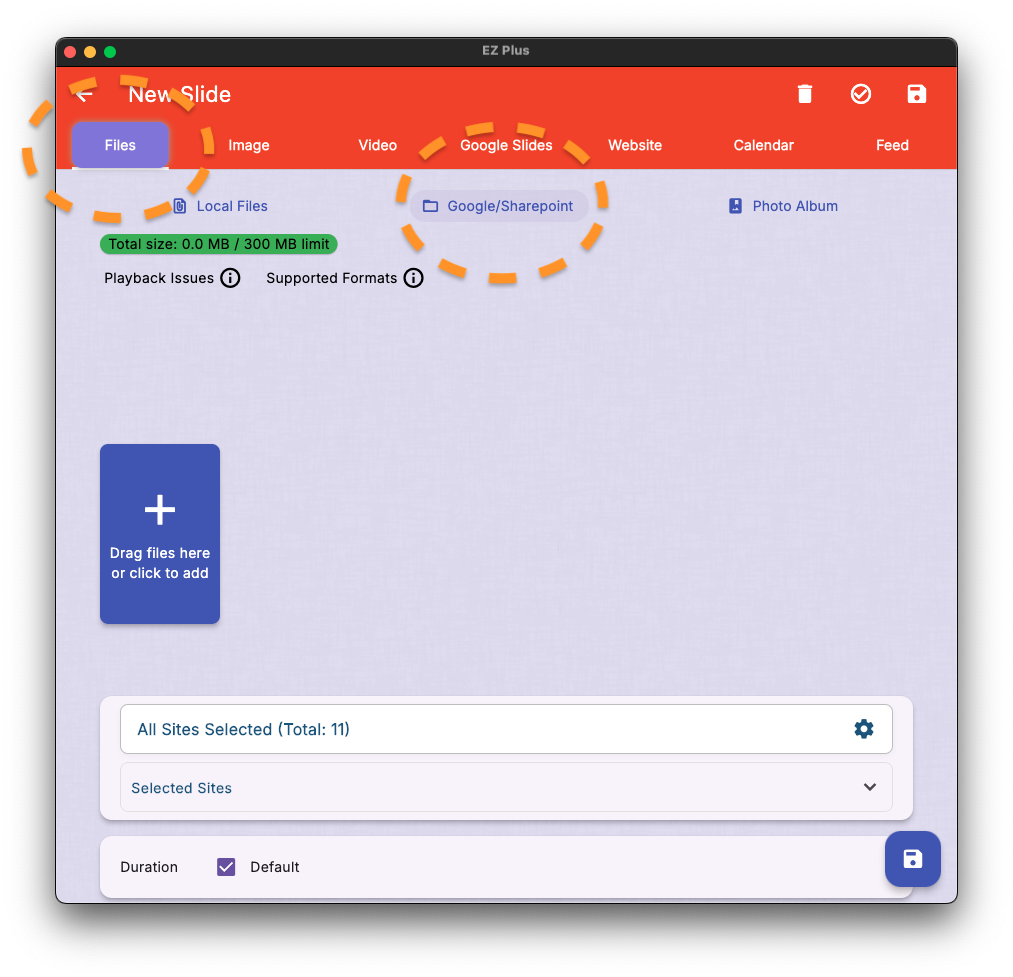

- Confirm the potential Google sign-in dialog.
- Pick the folder you want to sync from the folder browser. If you search by folder name, click “Search for all items containing …,” then single-click the folder and click Select at the bottom-left.
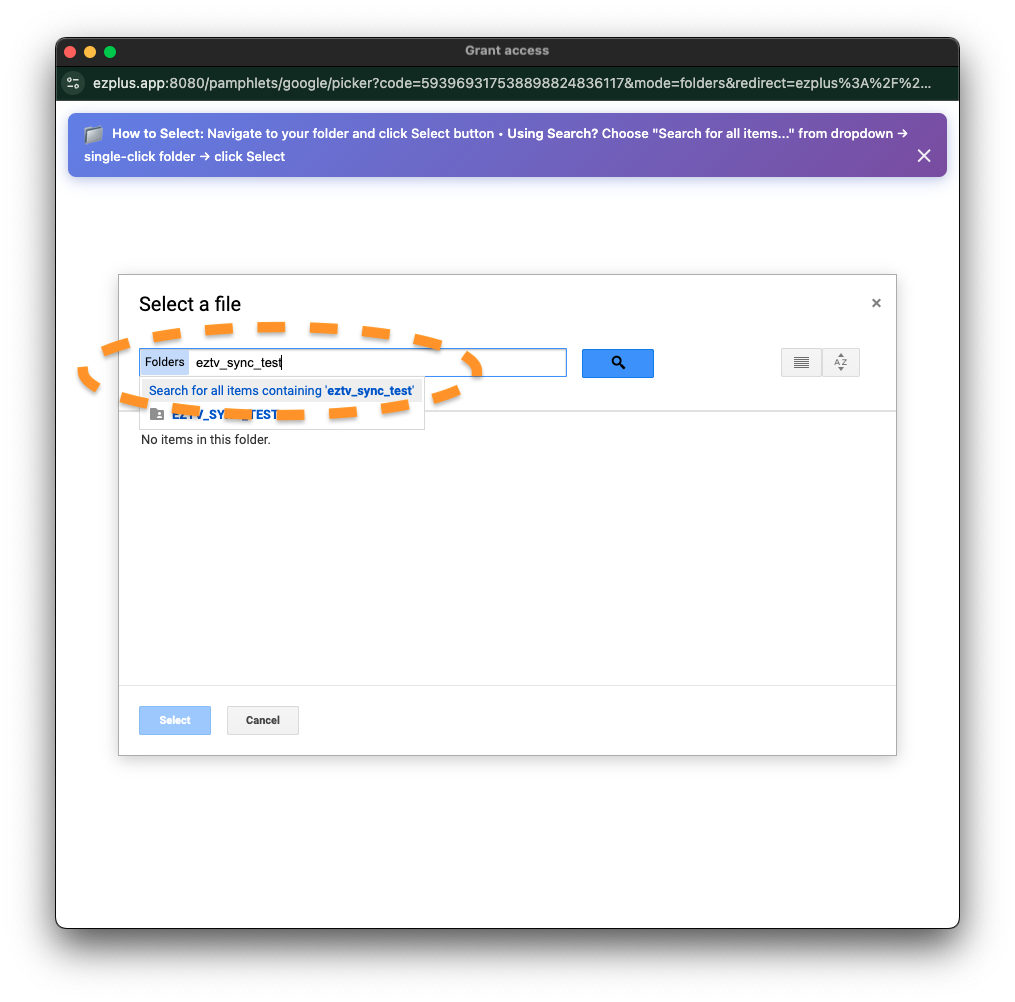

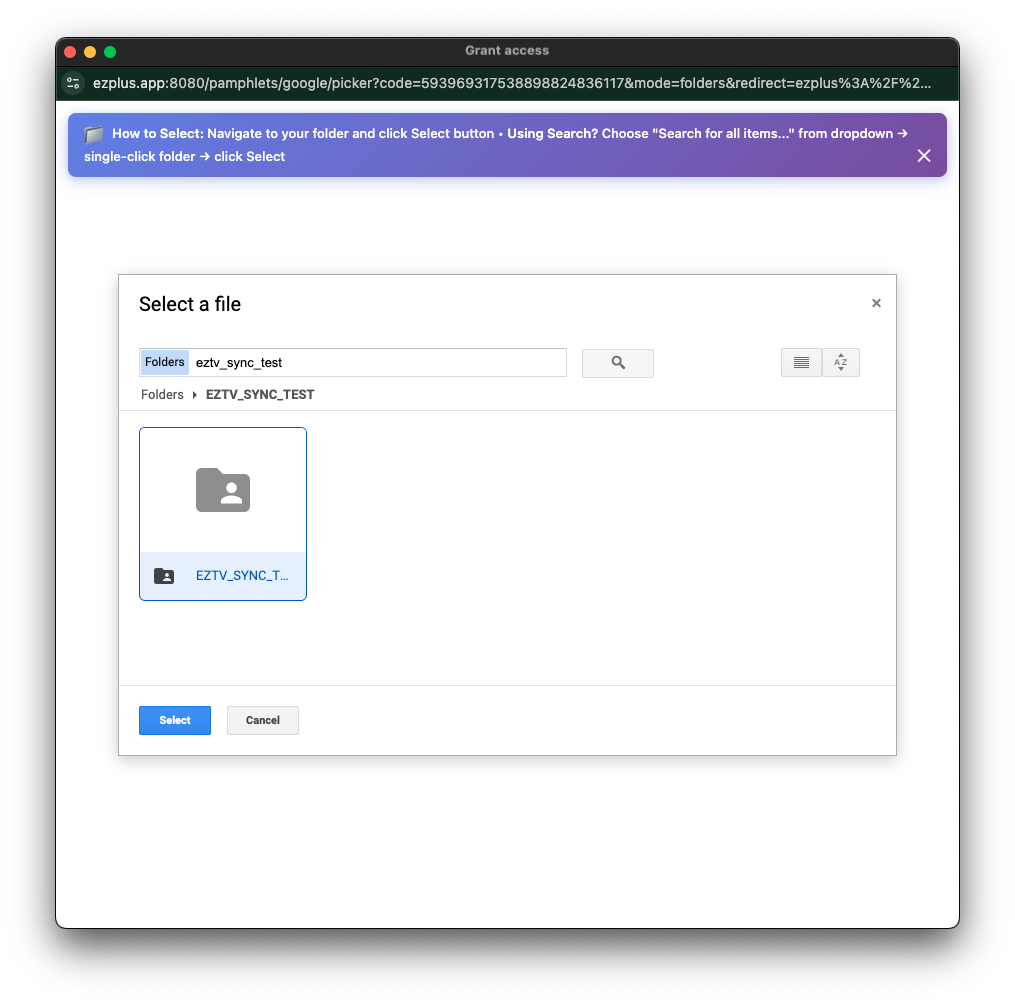
- If there are permission issues, the app will guide you through sharing the selected folder manually with the service account shown in the app (Viewer permission is enough).
- Make sure you see your files in the preview, and if so, save the slide.
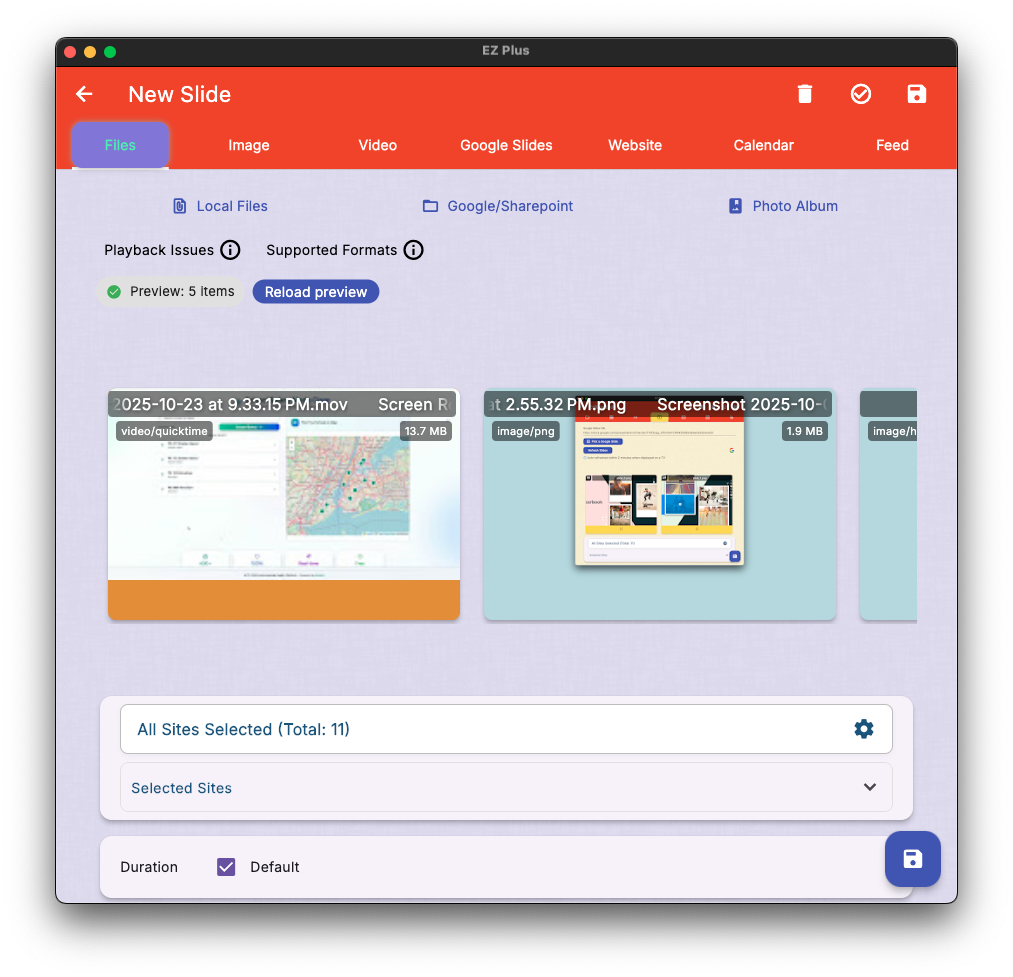
- The slide will start syncing on our servers and within a few minutes it will be fully available.
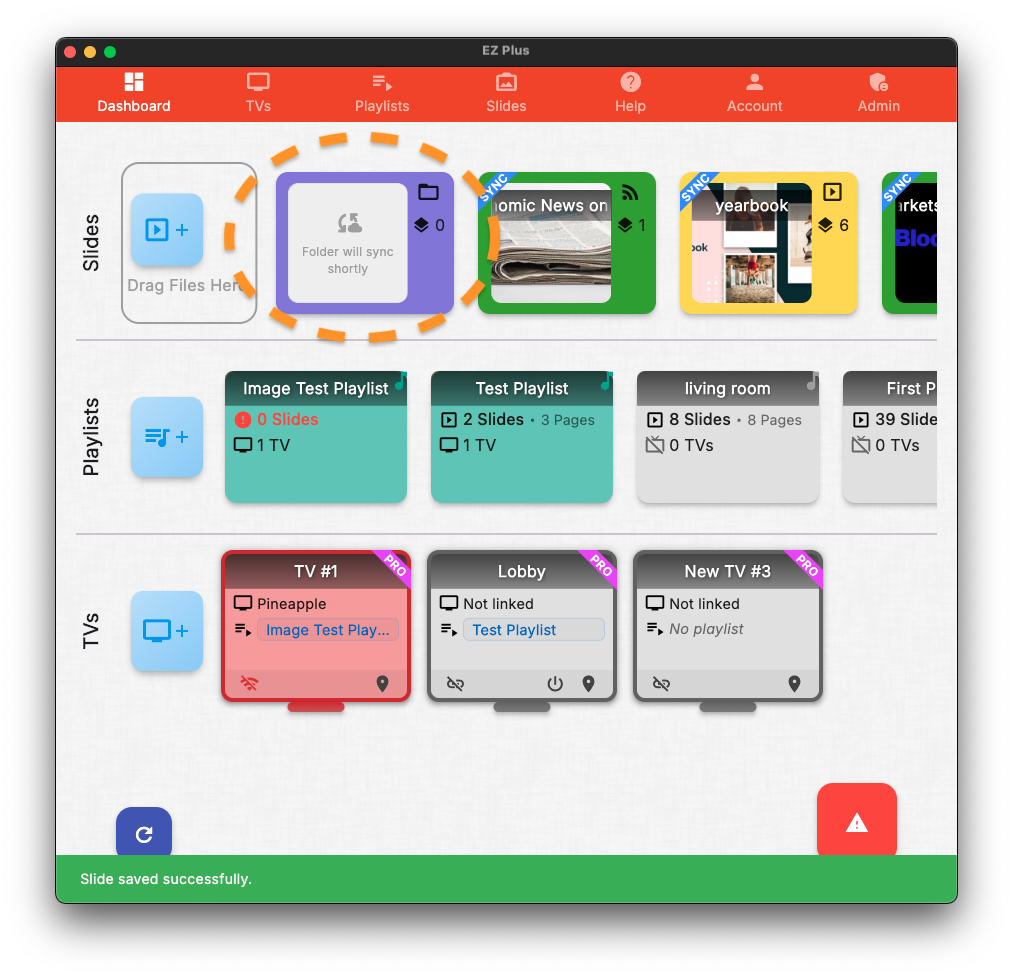
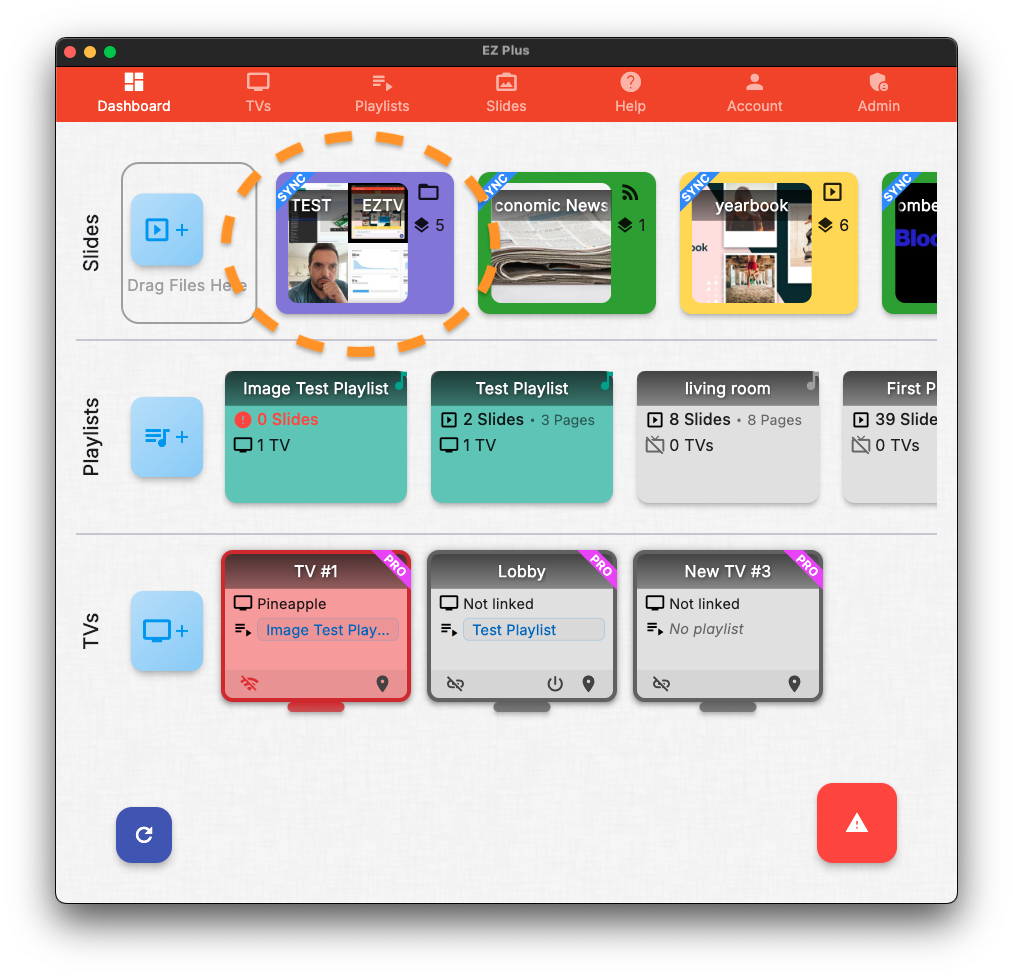
- Add the slide to a playlist or schedule.
- Assign that playlist to at least one online TV.
That is it. Add or remove files in Drive and TVs update within a few minutes. If a TV is offline it keeps showing cached content and catches up when it reconnects.
Sync Cadence and Behavior
- Polling interval: about every 5 minutes.
- Scope: files directly inside the selected folder.
- Supported types: images, videos, PDFs, and documents.
- Ordering: modified time by default. You can’t change item order yet; additional options are in progress.
- Caching: content is cached for resilience and fast playback.
Troubleshooting
- Files do not appear: ensure the folder is shared with the service account shown in the app (Viewer is enough). If a specific file is missing, confirm it inherits access. If issues persist, contact us and we’ll help.
- No updates: confirm the Drive Folder slide is in a playlist that is assigned to at least one online TV.
- Slow edits: allow up to 5 minutes for the next sync window. Large files and temporary Google API delays can add time.
- Video issues: convert videos to H.264 MP4, 1080p, constant frame rate.
- Force a pull: use Manual Refresh from Remote Management if you need an immediate update.
Availability
- Web Portal: app.eztv.plus (available now)
- Apple TV (tvOS) App: get the latest from the tvOS App Store
- Plans: Pro subscription plan is required for Drive Folder Sync
- iOS and macOS Apps: download from the App Store
FAQ
Do I have to republish files?
No. Add, delete, or edit files in the shared folder and EZTV syncs automatically.
Does this work with shared Drives and multiple editors?
Yes. Share the folder with the service account and your team can collaborate as usual.
What happens if a TV is offline?
It keeps showing cached content and updates on reconnection.
Can I use subfolders?
This release focuses on the selected folder. Place files directly inside it for reliable syncing.
Can I trigger a faster refresh?
Yes. Use Manual Refresh from Remote Management to pull changes sooner.
Changelog (16.0)
- New: Google Drive Folder Sync with 5 minute polling
- TV App: Stability and playback fixes
We are focused on giving schools, churches, and SMBs professional-grade digital signage that works with the simplicity of Google Drive. Talk to us if you want help rolling out Drive Folder Sync or planning a migration from Google Sign Builder or other tools.
Comments are closed